
Notes
A shared, folder-organized knowledge base your team and its agents read and write.
Notes are the project's shared knowledge base: specs, decisions, conventions, and durable context, kept in the same folder tree humans and agents both see. Notes is the third workspace view, a peer of Tasks and Graph. Switch to it from the view control in the top bar, or open a note directly from a task or the graph.
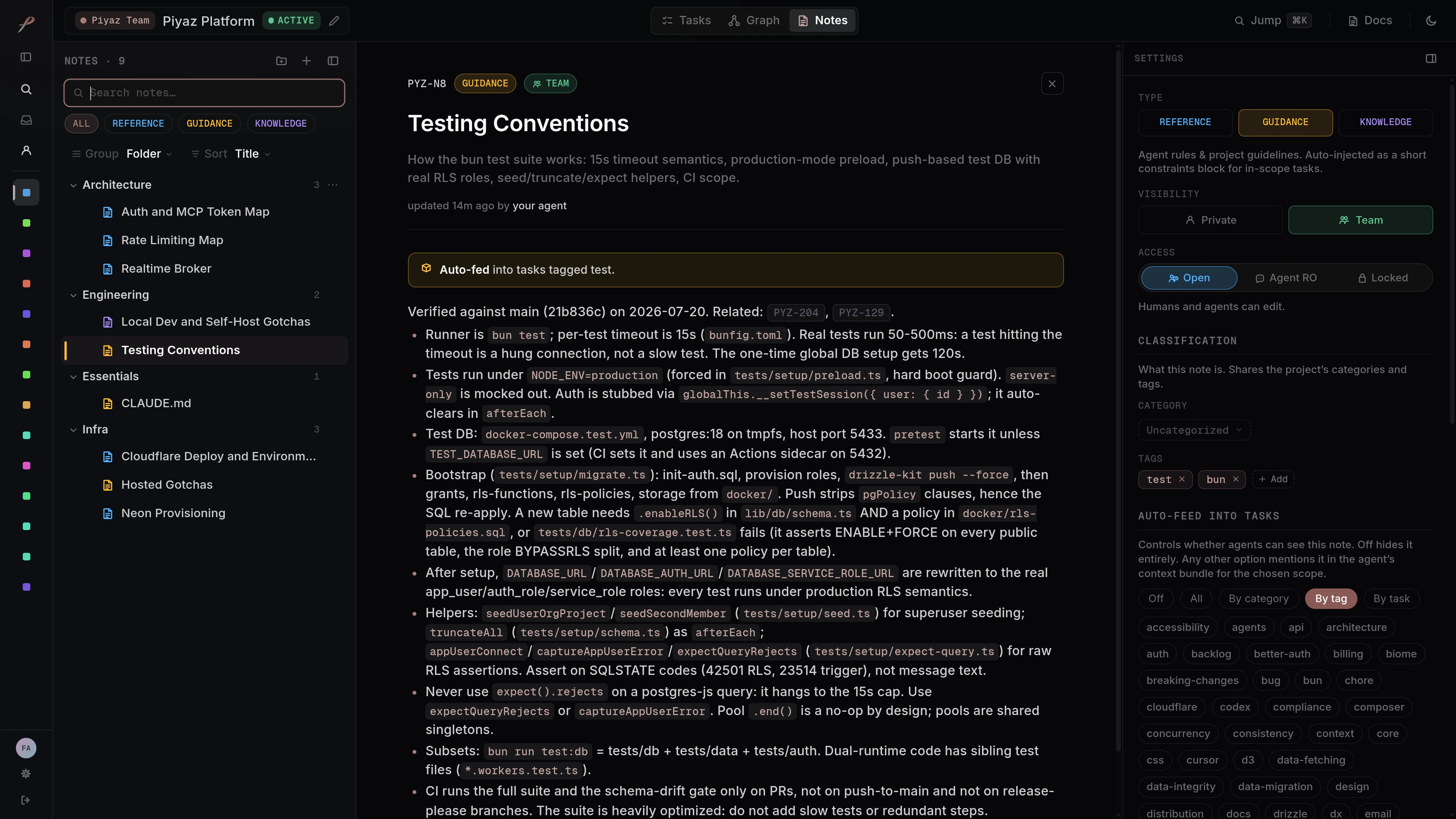
Layout
The Notes view has three columns:
- Tree on the left: the project's folders and notes.
- Editor in the center: the selected note.
- Settings on the right: the note's type, visibility, classification, feed, references, and history.
On narrower screens the tree and settings collapse into drawers so the editor keeps its width.
Note types
Every note has a type. It sets the note's color in the tree and, more importantly, how the note reaches an agent:
| Type | Color | What it holds | How an agent gets it |
|---|---|---|---|
| Guidance | Amber | Short, durable constraints and conventions. | Pushed: its full text is injected into every task it feeds. |
| Reference | Blue | Specs, designs, and docs. | Pulled: surfaced as a titled pointer the agent opens when relevant. |
| Knowledge | Violet | An agent-maintained wiki and memory. | Pulled: surfaced as a titled pointer the agent opens when relevant. |
Which tasks a note reaches is set by its feed (see Settings). Each note also carries a stable ref (like PYZ-N12) shown in its header, so you and your agents can name it anywhere.
The tree
The left pane is a nested, collapsible folder tree. Rows are tinted by type and marked when a note is private or locked. From here you can:
- Filter by type with the chips above the list.
- Search the project's notes; results rank by relevance and update as you type.
- Create a note or folder.
- Reorganize by dragging notes and whole folder subtrees, or renaming a folder inline (double-click or F2).
The editor
The center pane renders a note as full Markdown, including headings, lists, tables, images, links, task chips, and syntax-highlighted code. Callouts render from blockquotes.
- Edit by double-clicking, or the pencil on touch. The note becomes a raw-Markdown editor placed at the line you clicked, and changes autosave when you click away or press Escape.
- Link as you type:
[[opens a picker that suggests notes and tasks. Picking a note inserts a[[Title]]wiki link; picking a task inserts its ref. Both render as live, clickable chips.
The header shows the note's ref, type, and visibility, a save status, and who last edited it.
Settings
The right column controls everything about the note other than its body:
- Type and classification (category and tags).
- Visibility: Private (only you) or Team. A private note can request sharing, and a teammate approves or keeps it private.
- Access: whether agents as well as humans can read and write the note.
- Auto-feed: which tasks this note is delivered to. See Auto-feed below.
- References: the tasks this note mentions and the notes it links, each clickable.
- History: version checkpoints you can restore, and an activity timeline of who changed what.
Auto-feed
Auto-feed decides which tasks a note is delivered to. It is off by default: a new note is searchable but reaches no task until you set a feed on it. Pick a mode, then its targets:
| Mode | Delivers the note to |
|---|---|
| Off | Nothing. The note stays searchable, but nothing is auto-injected. |
| All | Every task in the project. |
| By category | Tasks in the categories you choose. |
| By tag | Tasks carrying the tags you choose. |
| By task | The specific tasks you pick. |
How it lands depends on the note's type: a fed guidance note injects its full text into each matching task's context, while a fed reference or knowledge note appears as a pointer the agent opens when it needs it. Reach for a narrow feed (by tag or by task) for a rule that governs part of the project, and All only for one that holds everywhere. See Context network for how a task's context reaches an agent.
Notes and tasks
Notes and tasks reference each other both ways:
- A task's detail panel lists its Linked notes: the notes that reference it. See Tasks.
- In Graph view, notes appear as nodes beside tasks, with edges showing which tasks they specify, reference, or mention.
- Notes are searchable from the global command palette.
Work with notes through your agent
Notes are how work carries across sessions. You talk in plain language; the agent reads and writes them for you through the piyaz_note MCP tool, and writes back what it learns so the next session starts smarter.
Record a durable constraint as guidance and feed it to the work it governs:
make a guidance note: every API route returns the shared error envelope.
feed it to all backend tasks.
Save a spec and attach it to the task it defines:
save this design as a reference note and link it to DEMO-2 as its specPull the relevant context before starting:
check the project notes for how we handle auth before you touch DEMO-2Capture what was learned so it does not die with the session:
note the gotcha you just hit with CSV encoding so the next agent has itLast updated